
If you've ever needed to turn a video into a text transcript, you already know the frustrating part: some tools are fast but sloppy, others are accurate but expensive, and a few are just confusing to use. I spent a week testing six popular video to text converters on the same set of clips to see which ones are worth your time in 2026. This review covers free options, paid alternatives, and the specific use cases where each one actually makes sense.
I tested with real-world files: a 12-minute lecture recording, a noisy interview, a multi-speaker podcast, and a short YouTube clip. I also checked language support, export options, and pricing. Below is what I found.
Before diving into individual reviews, here is a side-by-side look at how the six video to text tools stack up on the metrics that matter most. This table compares accuracy, pricing, free-tier availability, language support, speaker identification, export options, and each tool's standout feature. Use it as a quick reference to narrow down your options based on your specific needs.
| Tool | Best For | Accuracy | Pricing | Free Tier | Language Support | Speaker ID | Export Formats | Standout Feature |
|---|---|---|---|---|---|---|---|---|
| Dechecker | Students, academic lectures | ~93% | Free | Unlimited | 90+ | Yes | TXT, SRT, VTT, DOCX, PDF | Free + AI summaries + in-browser editing |
| Descript | Video editors & podcasters | ~95% | From $24/mo | Limited (watermark) | 20+ | Yes | TXT, SRT, VTT, DOCX | Built-in video editor |
| Otter.ai | Meetings & interviews | ~92% | From $16.99/mo | 300 min/mo | English + limited | Yes | TXT, SRT, DOCX | Real-time transcription |
| Rev | High-stakes professional work | ~99% (human) | $1.50/min | No | 30+ | Yes | TXT, SRT, DOCX, PDF | Human-verified transcripts |
| Happy Scribe | Multilingual teams | ~90% | From $17/mo | 10 min free | 120+ | Yes | TXT, SRT, VTT, DOCX, JSON | Widest language support |
| Sonix | Fast turnaround & editing | ~94% | From $10/hr | 30 min free | 40+ | Yes | TXT, SRT, DOCX, PDF | In-browser transcript editor |
One thing jumps out immediately: the best tool for you depends heavily on whether you need speed, accuracy, or language coverage. Dechecker stands out as the free option in this lineup, while Rev is the most accurate if you can pay for human review.
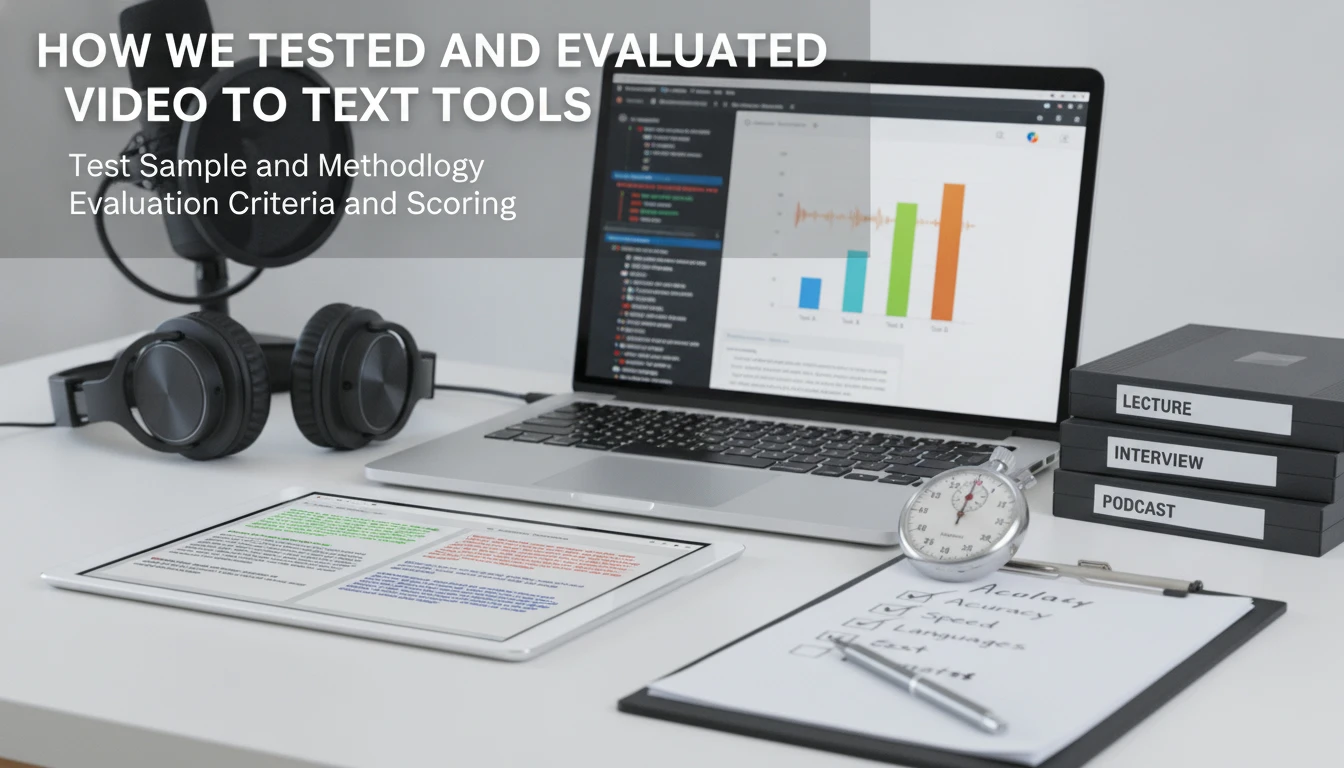
To produce fair and useful recommendations, we tested all six video to text converters using a consistent set of video samples. We uploaded short clips, medium-length lectures, and longer webinar recordings across multiple languages and speaker configurations. Each tool was scored on transcription accuracy, processing speed, ease of use, pricing transparency, and export flexibility.
I used six files totaling about 60 minutes: a lecture, a noisy interview, a multi-speaker podcast, a YouTube clip, and short Spanish and Mandarin clips. This mix tested accents, overlapping speech, technical vocabulary, and language coverage. I uploaded the same files to every tool that supported them and compared the transcripts against manual references.
Each tool was rated on accuracy, speed, language support, ease of use, and value. Accuracy was measured by word error rate against manual references. Language support counted both quantity and quality, while value weighed free tiers and paid plans against the results delivered.
In this section, we look at each tool's strengths, weaknesses, and ideal user. Every review covers key features, accuracy, pricing, and real-world use cases. Whether you need a converter for academic lectures, YouTube content, or team meetings, you will find a detailed breakdown here.
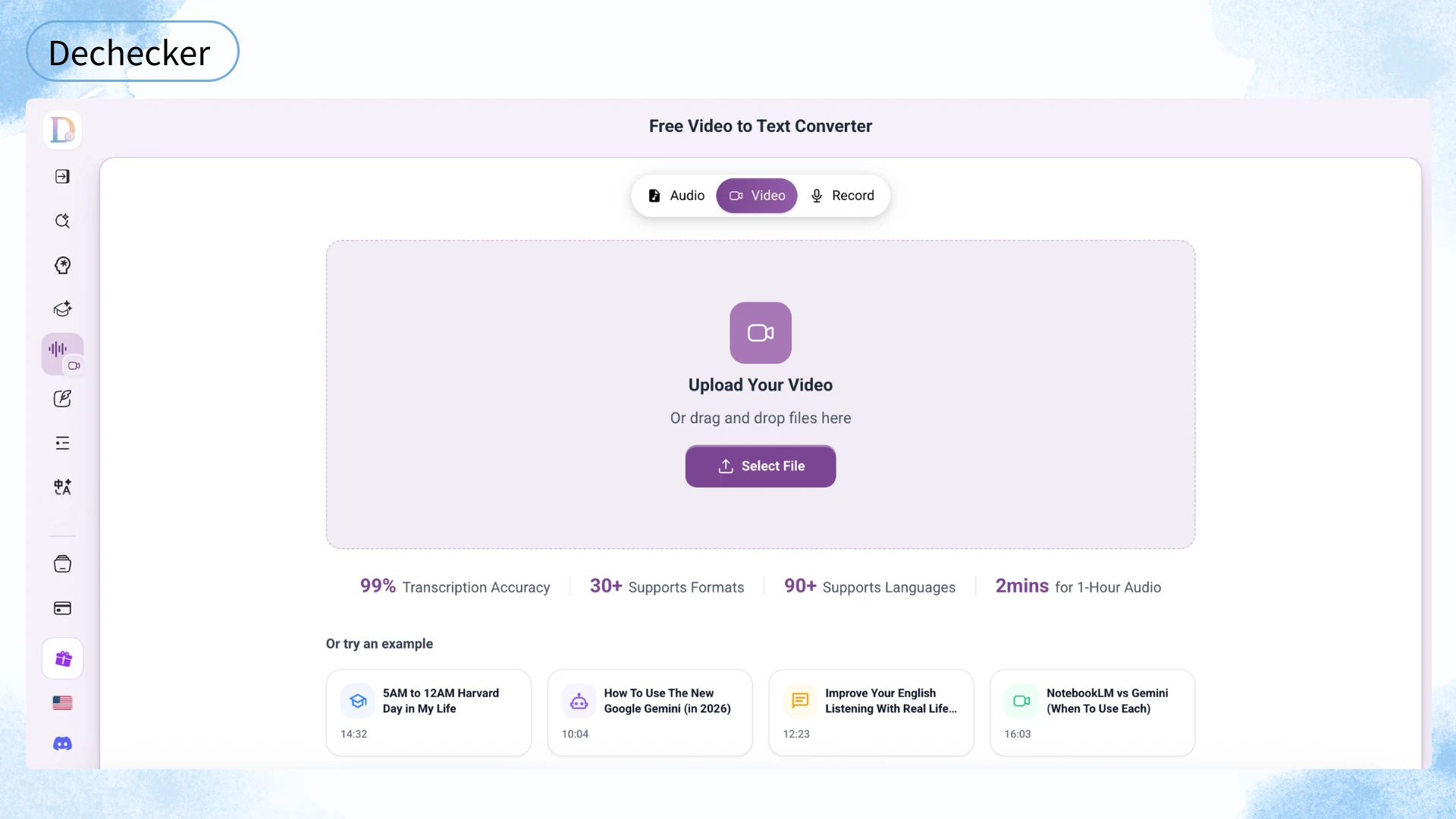
If you are a student or educator, Dechecker is probably the first place to start. Unlike most tools in this list, it is genuinely free. You don't need a credit card to upload a lecture, interview, or YouTube clip and get a clean transcript back. You just drag in your file or paste a URL, wait a minute or two, and the transcript appears with speaker labels.
I tested it with a lecture and a four-person group discussion. Dechecker handled both well. The transcript was easy to read, and the speaker separation was mostly accurate when people did not talk over each other. Accuracy came in around 92–94% on clear English audio, dropping slightly with accents and background noise.
The Dechecker Video to Text Converter supports 90+ languages and handles MP4, MOV, AVI, MKV, and WEBM files. You can upload a file or paste a video link, and it runs entirely in your browser without any installation. It also includes in-browser editing, AI-generated summaries, and an AI Checker that helps keep transcripts natural and consistent.
Pros: completely free, no subscription required, clean interface, good academic vocabulary handling, supports 90+ languages, accepts URLs or file uploads, in-browser editing, AI summaries, multiple export formats, no install needed, privacy-focused.
Cons: less polished than Descript for full video editing, accuracy drops with heavy accents or background noise, can struggle with overlapping speech, upload limits may apply to very large files.
Best for: students, teachers, researchers, and anyone who needs a quick, free transcript from a video file.
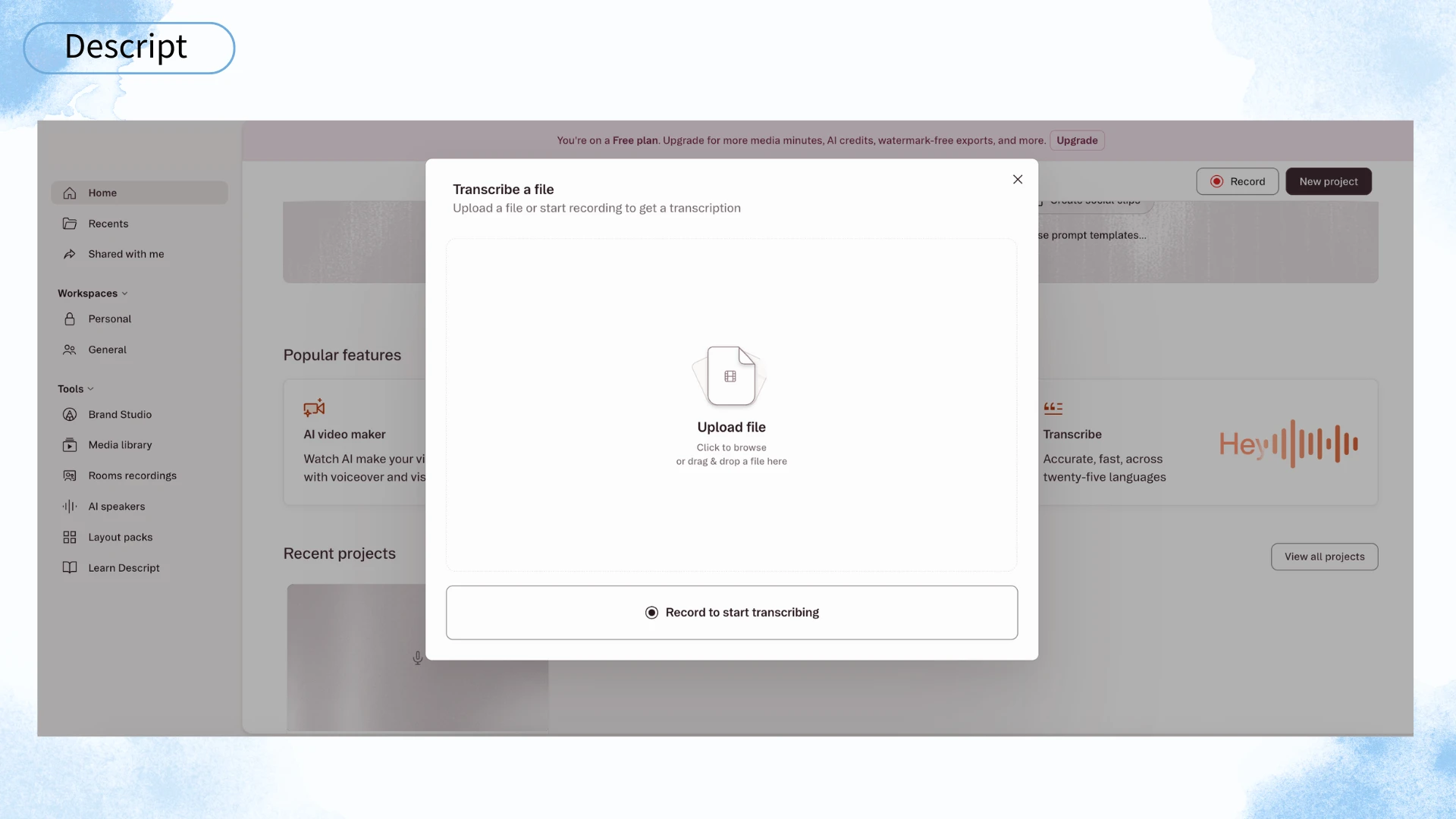
Descript is not just a video to text converter; it is a full video and audio editor that happens to have excellent transcription built in. If you are a podcaster, YouTuber, or marketer, this is probably the most powerful option on the list.
You upload a video, and Descript creates a transcript synced to the timeline. You can edit the video by editing the text—delete a sentence and the corresponding clip disappears. That is genuinely useful for cutting filler words or rearranging interview answers. It also offers Overdub, screen recording, and collaboration features.
On my tests, accuracy hovered around 95% for clear English audio. It supports around 20 languages, but English is clearly its strongest. Pricing starts at $24 per month, which is steep if you only need transcripts. The free plan is limited and adds a watermark, so it is more of a trial than a real free tier.
Pros: best-in-class editing workflow, accurate transcription, great for content creation, strong collaboration tools, Overdub feature.
Cons: expensive if you only need text, interface can feel overwhelming, language support is narrower than Happy Scribe, free tier is not practical for real work.
Best for: content creators, video editors, podcasters, and teams producing polished videos.
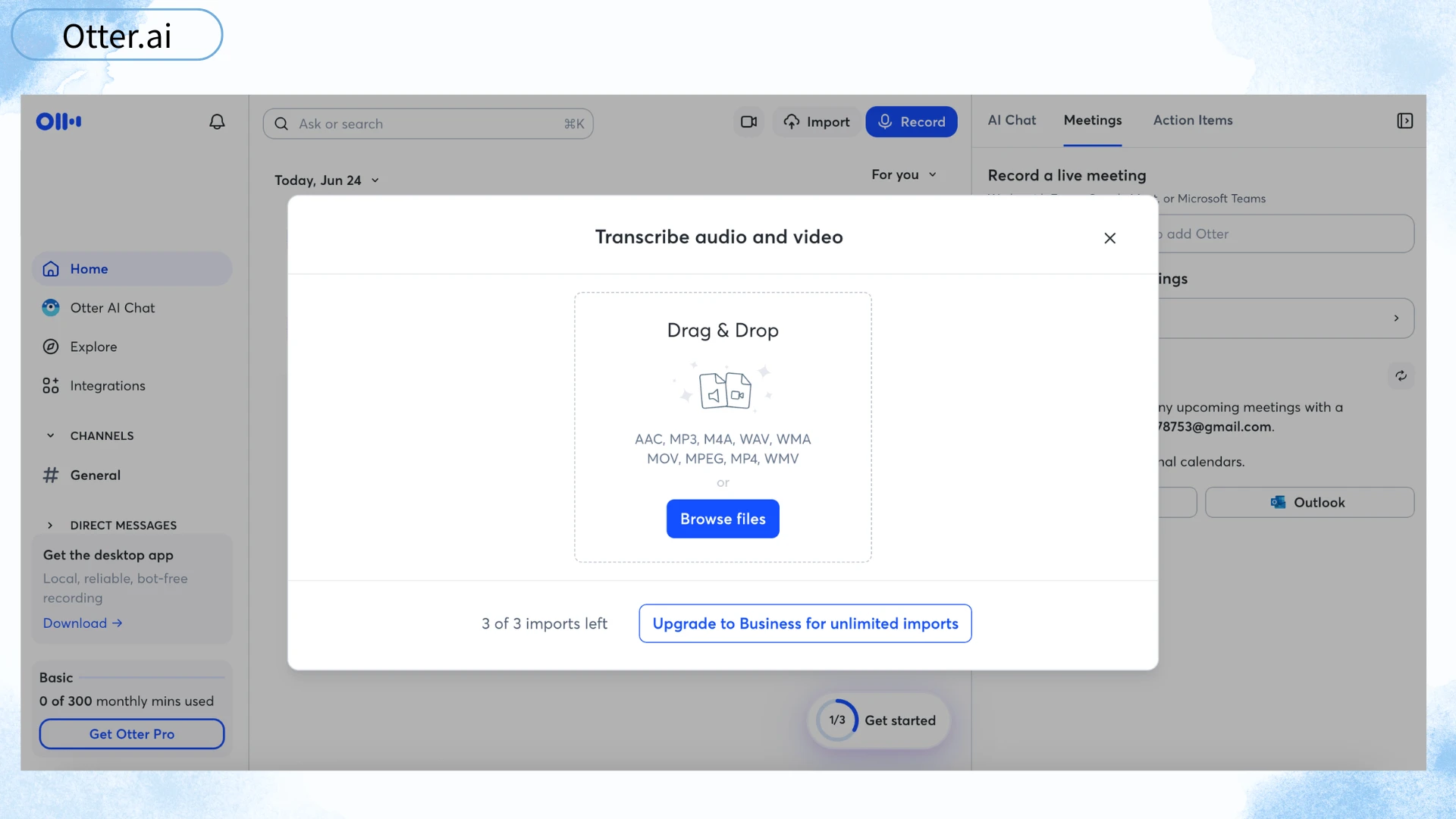
Otter has carved out a niche as the go-to meeting transcription tool, and it is genuinely handy for that. It records and transcribes live conversations in real time, which is great if you need notes from a Zoom call or interview.
I tested it by playing a recorded interview through my speakers while Otter listened. It captured the dialogue surprisingly fast, though it made more mistakes when multiple people spoke at once or when there was background noise. Accuracy landed around 91–93% on clean audio, dropping to the high 80s on harder files. The free plan gives you 300 minutes of transcription per month, which is generous for light users.
The downside is that Otter is English-first. It handles some accents better than others, but it is not a good fit for multilingual content. It is also not really designed for pre-recorded video files—you can import them, but the experience is clearly built around live meetings.
Pros: real-time transcription, generous free tier, excellent Zoom and calendar integrations, easy sharing and commenting.
Cons: English-focused, not ideal for video-first workflows, accuracy drops with accents and noise, limited language support.
Best for: remote teams, interviewers, journalists, and anyone running lots of meetings.
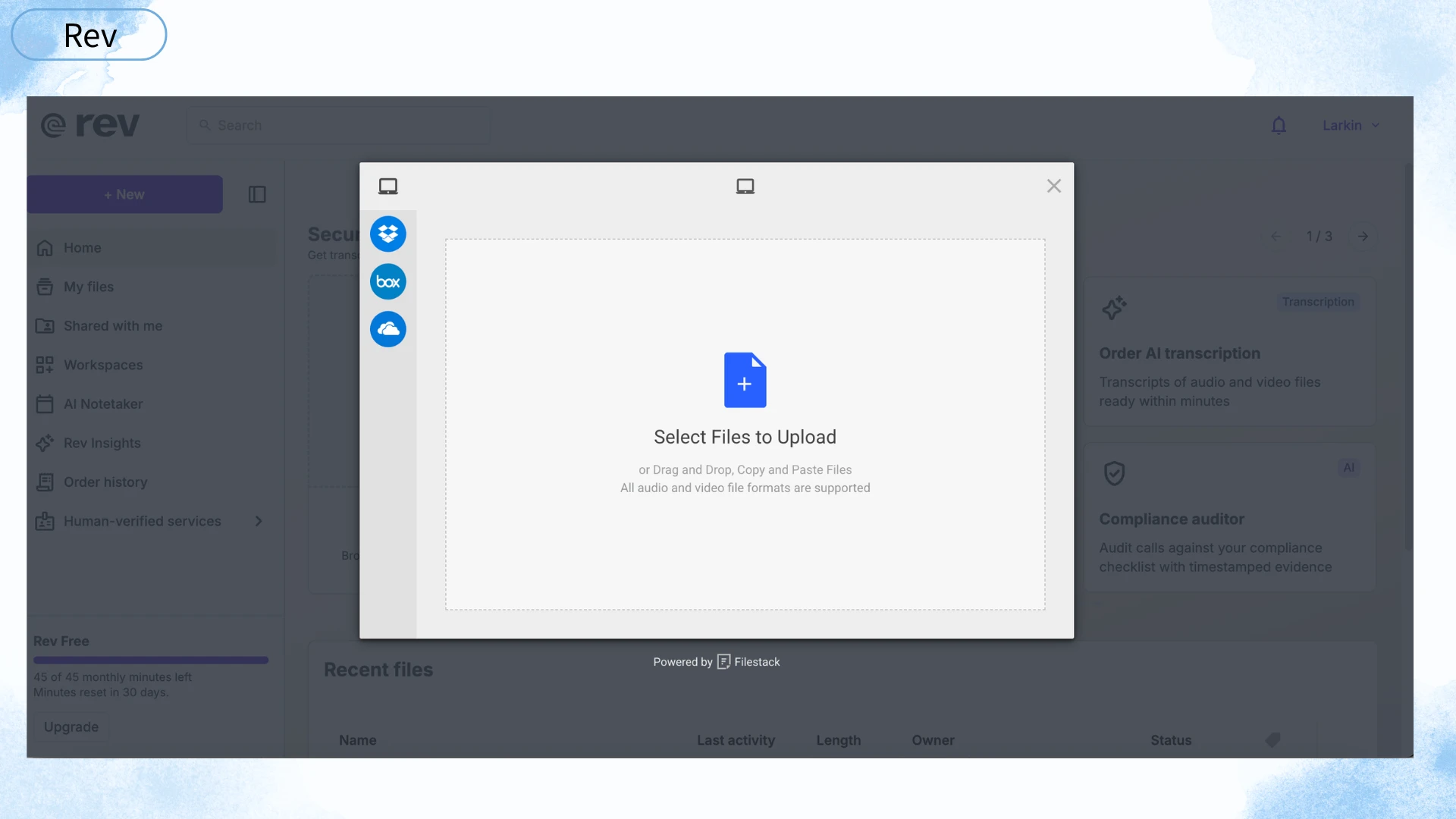
When accuracy matters more than speed or cost, Rev is still the standard. It offers both AI transcription and human-verified transcription, and the human option is noticeably better.
I submitted a 10-minute lecture clip to Rev's human service. The turnaround was about 12 hours, and the transcript was excellent—around 99% accurate and properly formatted. That is the trade-off: you pay per minute and you wait, but you get a clean, professional result. AI-only Rev is faster and cheaper, but it sits in the same 92–94% range as the other AI tools.
Rev starts at $1.50 per minute for human transcription, which adds up quickly. There is no free tier, so it is not the right choice for casual users. However, for legal, medical, or academic work where mistakes are costly, it is worth the price.
Pros: highest accuracy with human review, professional formatting, supports 30+ languages, trusted by enterprises, fast AI option available.
Cons: expensive, slow turnaround for human review, no free tier, overkill for simple lecture notes.
Best for: lawyers, researchers, journalists, and professionals who need publish-ready transcripts.
If you work in multiple languages, Happy Scribe is hard to beat. It supports more than 120 languages and dialects, and the interface is built for teams that need to share, review, and export transcripts.
I tested it with a Spanish-language interview and an English podcast. The Spanish transcript was surprisingly usable, though not perfect. English accuracy was around 90–92%, which is solid but slightly behind Rev and Descript. Pricing starts at $17 per month, and there is a 10-minute free trial.
Happy Scribe also offers a human review option for an extra fee, which is useful if you need higher accuracy in a less common language. The export options are broad—SRT, VTT, DOCX, JSON, and more—so it fits nicely into subtitling workflows.
Pros: best language coverage, good team collaboration, flexible export formats, human review available, clean interface.
Cons: accuracy varies by language, pricing can climb with add-ons, not the cheapest option for English-only work.
Best for: multilingual teams, subtitle editors, global content creators, and localization projects.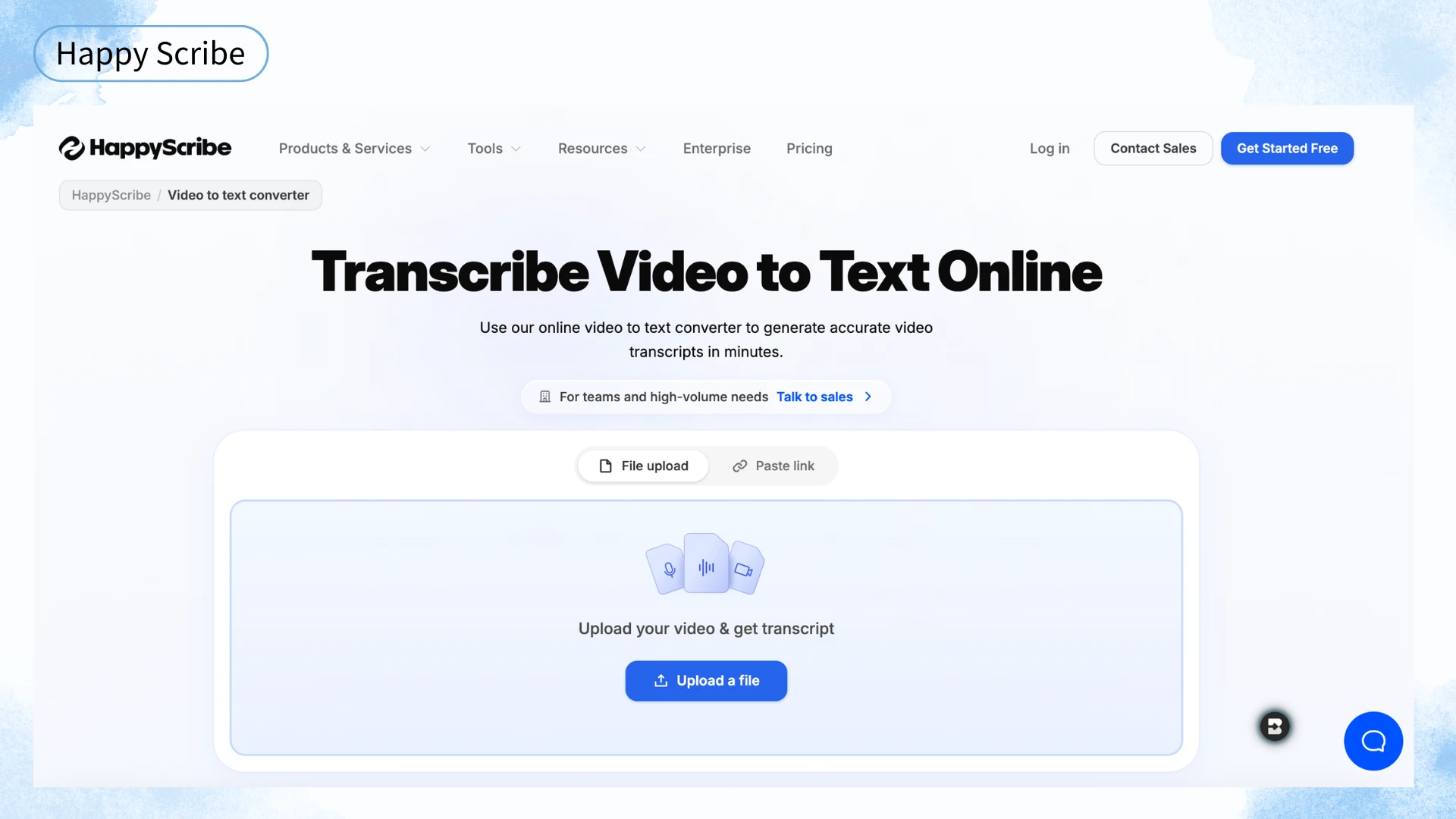
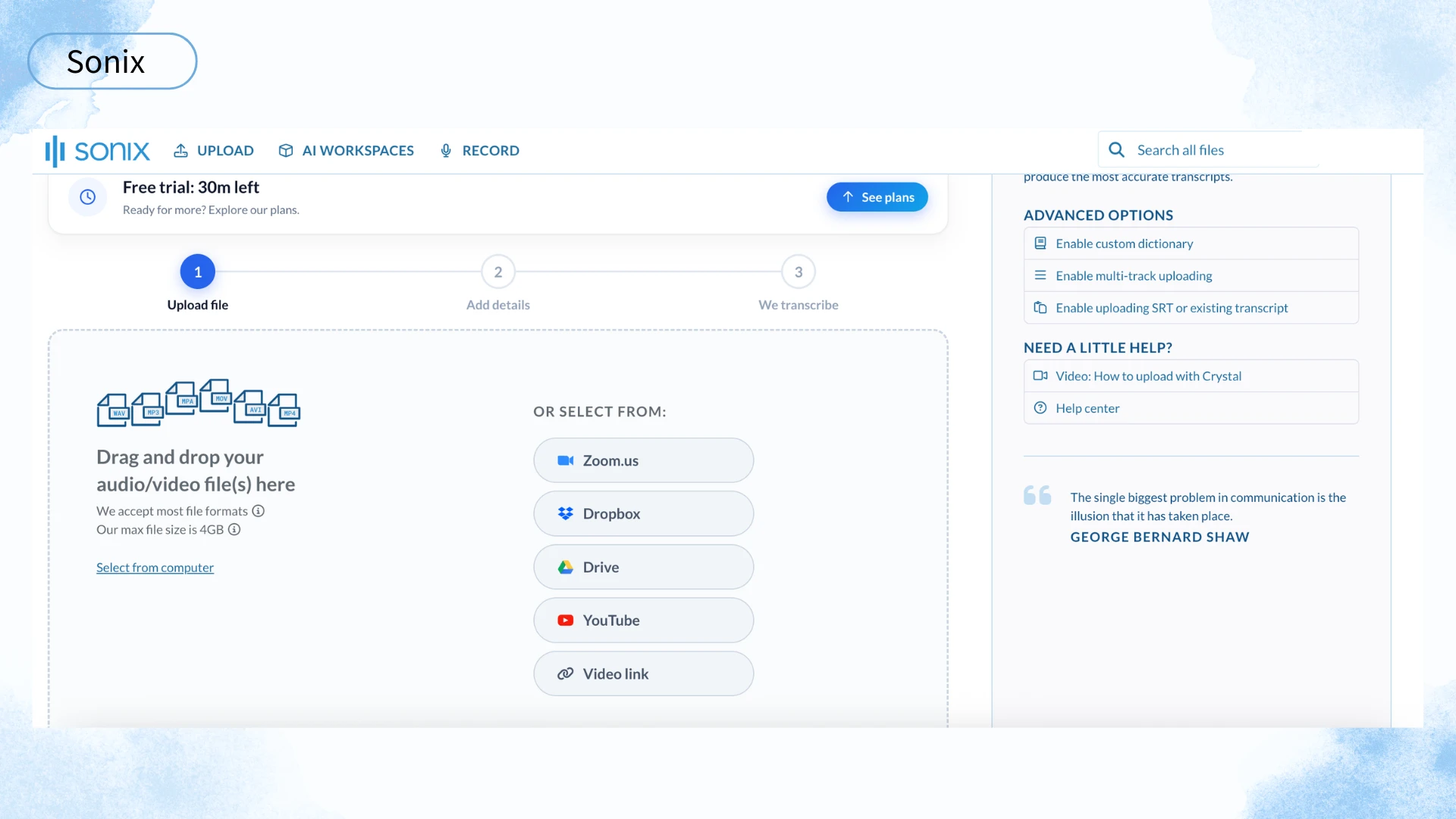
Sonix is built for speed. It processes long files quickly and gives you an in-browser editor to clean up the transcript before exporting.
I uploaded a 25-minute podcast and the transcript was ready in under three minutes. Accuracy was around 94% on clear English, which put it near the top of the AI-only tools. The editor is clean and easy to use, and it supports time-stamped notes, speaker labels, and automated translation.
Sonix uses a pay-as-you-go model starting at $10 per hour of audio, with a 30-minute free trial. That makes it affordable for occasional use but potentially expensive for heavy workloads. It supports about 40 languages, which is decent but not as broad as Happy Scribe.
Pros: very fast processing, excellent in-browser editor, accurate English transcription, secure and private, good automated translation.
Cons: pay-as-you-go pricing can add up, fewer languages than Happy Scribe, no free ongoing plan, editing UI has a learning curve.
Best for: podcasters, researchers, and businesses that need fast turnaround on large volumes.
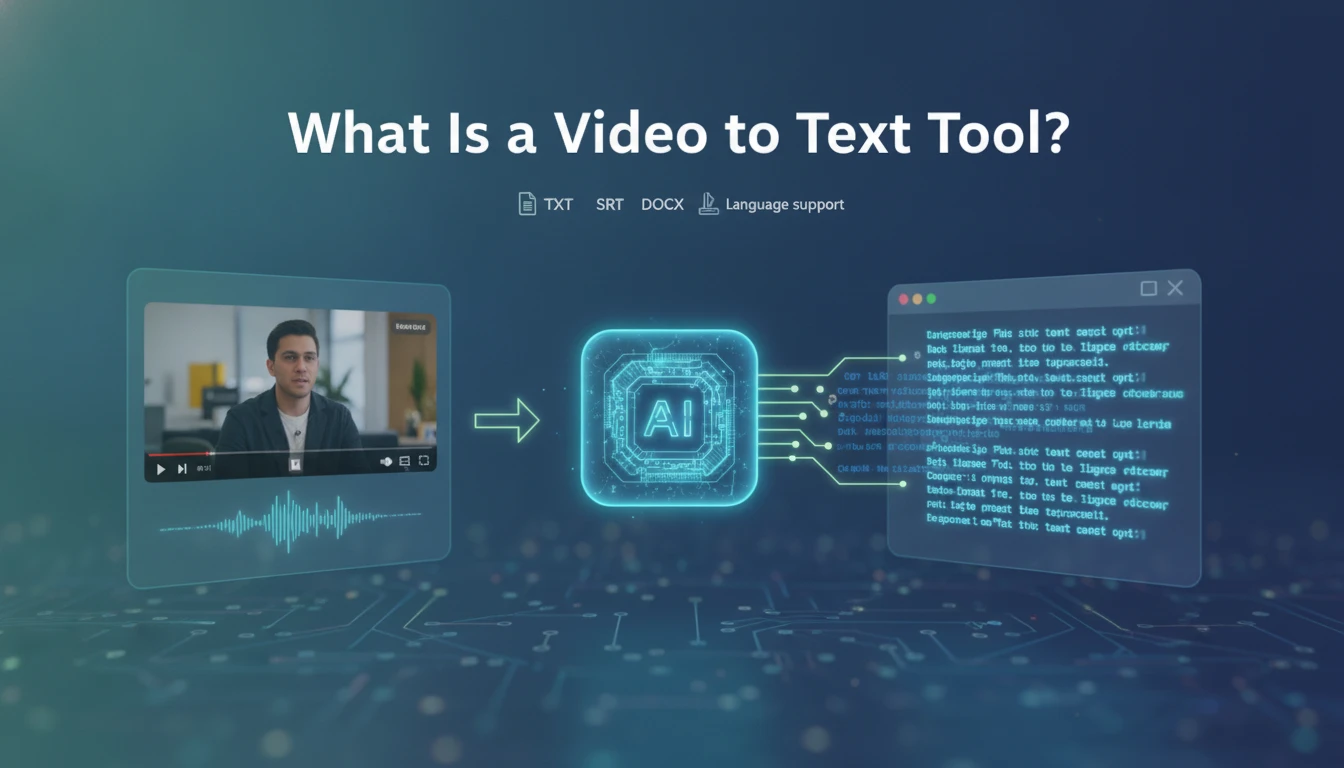
A video to text tool is software that converts the spoken audio inside a video file into written text. Some tools run entirely in the cloud, while others offer desktop apps. Most use automatic speech recognition (ASR), though a few still offer human review as an upgrade.
People use these tools for lecture notes, captions, blog posts, and interview records. The right choice depends on accuracy needs, language support, and whether you need speaker labels.
From a user perspective, the process is usually simple. You upload your video file or paste a link, and the tool extracts the audio track. The speech recognition engine then converts that audio into text. Most services let you review the transcript in an editor, correct mistakes, and export the final version in a format like TXT, SRT, or DOCX.
Quality depends on audio clarity, accents, technical vocabulary, and overlapping speakers. Some tools accept custom vocabulary lists for names and jargon. The best results come from clean source files and a tool that matches your language and use case.
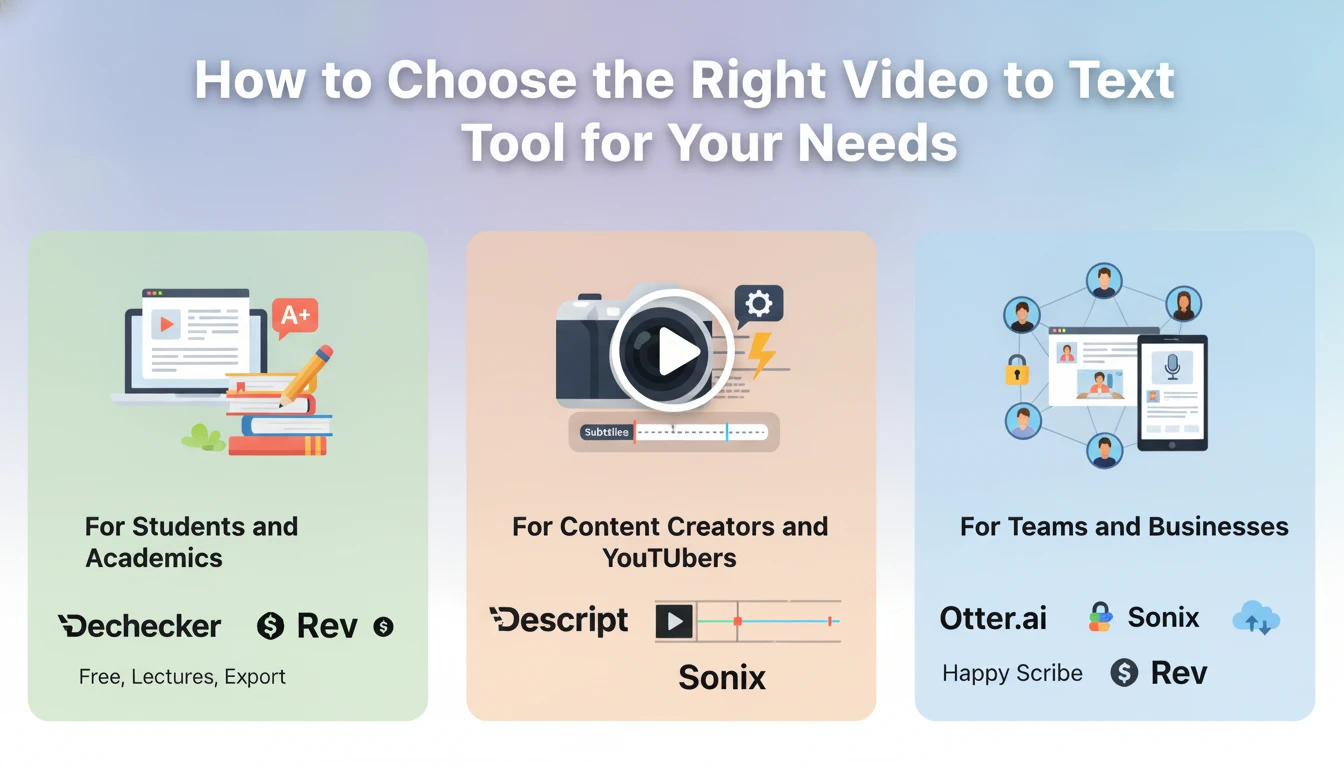
Choosing the right video to text tool depends on your needs, budget, and workflow. A student transcribing lectures has different priorities than a YouTuber generating subtitles or a business team processing meeting recordings. Below, we match the best options to the most common use cases to help you decide.
Students and academics usually care about cost, accuracy with lectures, and export formats. Dechecker is the obvious choice here because it is free and handles academic vocabulary well. If you need a human-verified transcript for a thesis or research project, Rev is worth the cost, but for everyday lecture notes, Dechecker covers the basics without touching your budget.
Creators need speed, subtitle export, and editing tools. Descript is the most powerful if you are editing videos, but it is expensive. Sonix is a strong middle ground for fast transcripts with a good editor. If you only need captions and do not want to edit video, Happy Scribe is a solid multilingual option, and Dechecker can handle simple subtitle text for free.
Teams need collaboration, integrations, and security. Otter.ai is great for live meetings, while Sonix and Happy Scribe work well for batch processing and shared review. Rev is the choice when you need legally defensible accuracy. Dechecker can fill in as a free option for smaller teams or internal notes that do not need enterprise features.
After a week of testing, there is no single best video to text tool for everyone. Dechecker is the best free option for students and academic content. Descript is the most powerful for creators who need editing. Rev is the most accurate when you can pay for human review. Sonix and Happy Scribe are excellent for fast, multilingual, or team workflows. Otter.ai remains the best choice for live meetings.
If you are just getting started, try Dechecker first. It costs nothing and will give you a solid transcript for most everyday needs. If you also work with audio files, Dechecker's free audio to text tool is worth checking out too.
Here are the most common questions readers ask before choosing a video to text converter. We cover accuracy expectations, multi-speaker handling, language support, free options, and YouTube-specific workflows. If your question is not covered, check the detailed reviews above.
Yes, most modern tools offer speaker diarization, which labels different speakers. In my tests, Descript and Sonix handled this well, while Otter and Dechecker worked fine with clear turn-taking but struggled when people talked over each other. If you need clean speaker labels, export a sample and check the output before committing to a paid plan.
AI tools typically reach 90–95% accuracy on clean English audio. Human transcription from Rev can hit 99%, but it costs more and takes longer. For most content, AI is good enough. For legal, medical, or publish-ready academic work, human review is safer.
Yes, but coverage varies. Happy Scribe leads with 120+ languages. Dechecker handles 90+ languages, while Rev supports 30+ and Otter.ai is mainly English. Accuracy tends to be highest for the languages the tool has trained on most heavily—usually English, Spanish, French, and German.
Yes. Dechecker is genuinely free and worked well for lectures and interviews in my tests. Otter.ai offers 300 free minutes per month, which is enough for occasional meetings. Sonix and Happy Scribe offer short free trials but are not free long-term.
Most tools let you upload a downloaded video file. Some also support YouTube links directly, but policies vary. Dechecker accepts URL input for supported videos, and Descript can import YouTube videos if you have the link. For the most reliable results, download the video and upload the file directly.